Jetson AGX Orin Developer Kit with JetPack 7.2
Instruction
TechNexion Embedded Vision Solutions provide embedded system developers access to high-performance, industrial-grade camera solutions to accelerate their time to market for embedded vision projects.
Supported Platforms
| Platform | Supported JetPack | Installer Selection | GMSL2 Adaptor |
|---|---|---|---|
| Jetson AGX Orin Developer Kit | JetPack 7.2 | Jetson AGX Orin | VL-GM2-AGX-8CAM |
Supported Camera Modules
| Camera Series | Products |
|---|---|
| VLS-GM2 | VLS-GM2-AR0144 VLS-GM2-AR0145 VLS-GM2-AR0234 VLS-GM2-AR0235 VLS-GM2-AR0246 VLS-GM2-AR0521 VLS-GM2-AR0522 VLS-GM2-AR0544 VLS-GM2-AR0821 VLS-GM2-AR0822 VLS-GM2-AR0830 VLS-GM2-AR1335 VLS-GM2-AR2020 |
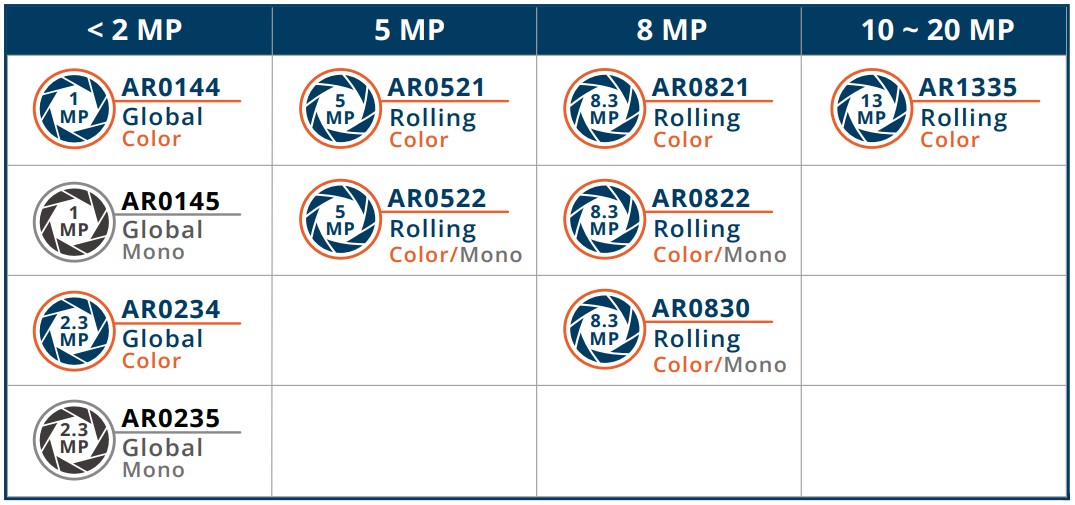
More Camera Products Details...
This guide has been validated on Jetson AGX Orin Developer Kit with JetPack 7.2, Linux for Tegra 39.2, and kernel 6.8.12-1021-tegra using the TechNexion JetPack 7.2 pre-built camera driver package.
Install TN Camera on Jetson AGX Orin Developer Kit
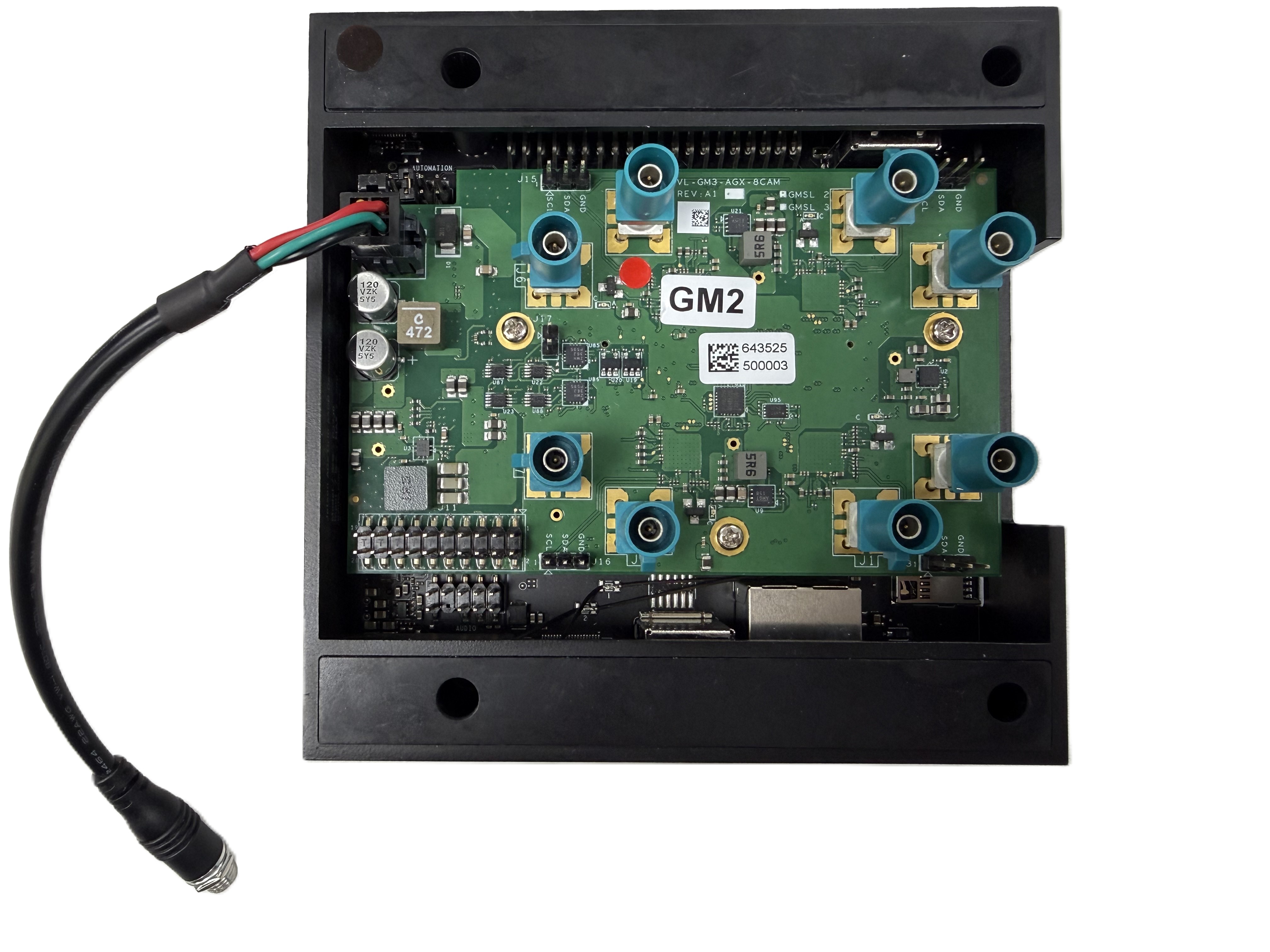
Adaptor for NVIDIA Jetson AGX Orin Developer Kit
Use the VL-GM2-AGX-8CAM adaptor for VLS-GM2 cameras on Jetson AGX Orin Developer Kit. For adaptor pinout and power details, see VL-GM2-AGX-8CAM.
Using TechNexion pre-built modules
Set up the Jetson AGX Orin Developer Kit with NVIDIA JetPack 7.2 first, then install the TechNexion camera driver package for JetPack 7.2.
-
Download pre-built modules.
wget https://download.technexion.com/demo_software/EVK/NVIDIA/OrinNano/pre-built-modules/latest/JP72/tn_camera_modules_jp72.tar.gz -
Uncompress the modules.
tar -xf tn_camera_modules_jp72.tar.gz -
Run the installation script.
cd tn_camera_modules_orin_nano_jp72_<release_time>/
sudo ./tn_install.sh
The driver package and extracted directory use OrinNano naming, but the same installer supports Jetson AGX Orin. Select Jetson AGX Orin when prompted.
-
Select the Jetson AGX Orin platform. VLS-GM2 is selected automatically because it is the supported camera module for this platform.
$ sudo ./tn_install.sh
****** TechNexion Camera Driver Installation ******
This installer updates TechNexion camera drivers, camera DTBOs,
and boot entries for NVIDIA Jetson Development Kits.
Back up your image before continuing.
Continue? [Y/n] Y
Target platform:
  [1] Jetson Orin Nano
  [2] Jetson AGX Orin
Select platform [1-2] (default: 1): 2
Reboot after installation? [y/N] n
Installing OrinNano JP72
Selected platform: Jetson AGX Orin
Selected module: VLS-GM2
Installation summary:
  Kernel: 6.8.12-1021-tegra
  Modules installed: 5
  Boot files installed: 18
  Default boot entry: vls-gm2
  Camera overlay: /boot/tegra234-p3737-camera-vls-gm2-overlay.dtbo
  Camera boot entries: 5
Finish Camera Driver Installation.
Reboot the device when the user is ready.
Reboot the device after installation.
Bring up Camera
TechNexion VizionViewer
GStreamer
After the camera initializes successfully, use the following commands to inspect and test it.
-
Check the supported resolutions:
$ gst-device-monitor-1.0 Video/Source
Probing devices...

Device found:

        name  : vi-output, tevs 9-003d (V4L2)
        class : Video/Source
        caps  : video/x-raw, format=UYVY, width=640, height=480, framerate=60/1
                video/x-raw, format=UYVY, width=1280, height=720, framerate=60/1
                video/x-raw, format=UYVY, width=1920, height=1080, framerate=60/1
                video/x-raw, format=UYVY, width=2560, height=1440, framerate=30/1
                video/x-raw, format=UYVY, width=3840, height=2160, framerate=15/1
                video/x-raw, format=NV16, width=640, height=480, framerate=60/1
                video/x-raw, format=NV16, width=1280, height=720, framerate=60/1
                video/x-raw, format=NV16, width=1920, height=1080, framerate=60/1
                video/x-raw, format=NV16, width=2560, height=1440, framerate=30/1
                video/x-raw, format=NV16, width=3840, height=2160, framerate=15/1
        properties:
                object.path = v4l2:/dev/video0
                device.api = v4l2
                media.class = Video/Source
                api.v4l2.path = /dev/video0
                api.v4l2.cap.driver = tegra-video
                api.v4l2.cap.card = vi-output, tevs 9-003d
                api.v4l2.cap.bus_info = platform:tegra-capture-vi:0
                api.v4l2.cap.version = 6.8.12
                api.v4l2.cap.capabilities = 84200001
                api.v4l2.cap.device-caps = 04200001
                node.name = v4l2_input.platform-tegra-capture-vi
                node.description = vi-output, tevs 9-003d (V4L2)
                factory.name = api.v4l2.source
                media.role = Camera
        gst-launch-1.0 pipewiresrc target-object=49 ! ...

... -
Verify a 1280x720 camera (/dev/video0) through the NVIDIA capture path without opening a display window:
$ gst-launch-1.0 nvv4l2camerasrc device=/dev/video0 num-buffers=30 ! \
"video/x-raw(memory:NVMM), format=UYVY, width=1280, height=720, framerate=60/1" ! \
nvvidconv ! "video/x-raw(memory:NVMM), format=NV12" ! fakesink sync=false -
Launch a 1280x720 camera (/dev/video0) via the GPU on the Jetson display:
$ DISPLAY=:0 gst-launch-1.0 nvv4l2camerasrc device=/dev/video0 ! \
"video/x-raw(memory:NVMM), format=UYVY, width=1280, height=720, framerate=60/1" ! \
nvvidconv ! "video/x-raw(memory:NVMM), format=NV12" ! nv3dsink sync=false
Troubleshooting
Cannot Find Cameras
If you cannot bring up the cameras, check whether the video devices exist.
$ ls /dev/video*  # List all video devices
/dev/video0  /dev/video1  /dev/video2  /dev/video3
/dev/video4  /dev/video5  /dev/video6  /dev/video7
Check whether the camera drivers have been probed.
$ lsmod | grep -E 'tevs|max96724|max96717'
max96717               32768  8
tevs                   32768  0
You can also check whether the VLS-GM2 boot entry and the AGX Orin overlay are active after reboot.
$ grep -nE 'DEFAULT|LABEL|FDT|OVERLAYS' /boot/extlinux/extlinux.conf
DEFAULT tn-vls-gm2
LABEL tn-vls-gm2
      FDT /boot/tegra234-p3737-0000+p3701-0005-nv.dtb
      OVERLAYS /boot/tegra234-p3737-camera-vls-gm2-overlay.dtbo
Could not get EGL display connection or failed to start nv3dsink
If you encounter nvbufsurftransform: Could not get EGL display connection or nv3dsink: Failed to start when running the GStreamer command through SSH, run the command from the Jetson graphical session or set the display environment before launching the pipeline:
$ export DISPLAY=:0
$ export XDG_RUNTIME_DIR=/run/user/$(id -u)
$ gst-launch-1.0 nvv4l2camerasrc device=/dev/video0 ! \
"video/x-raw(memory:NVMM), format=UYVY, width=1280, height=720, framerate=60/1" ! \
nvvidconv ! "video/x-raw(memory:NVMM), format=NV12" ! nv3dsink sync=false
If the display sink still cannot start from SSH, verify the camera capture path without opening a display window:
$ gst-launch-1.0 nvv4l2camerasrc device=/dev/video0 num-buffers=30 ! \
"video/x-raw(memory:NVMM), format=UYVY, width=1280, height=720, framerate=60/1" ! \
nvvidconv ! "video/x-raw(memory:NVMM), format=NV12" ! fakesink sync=false