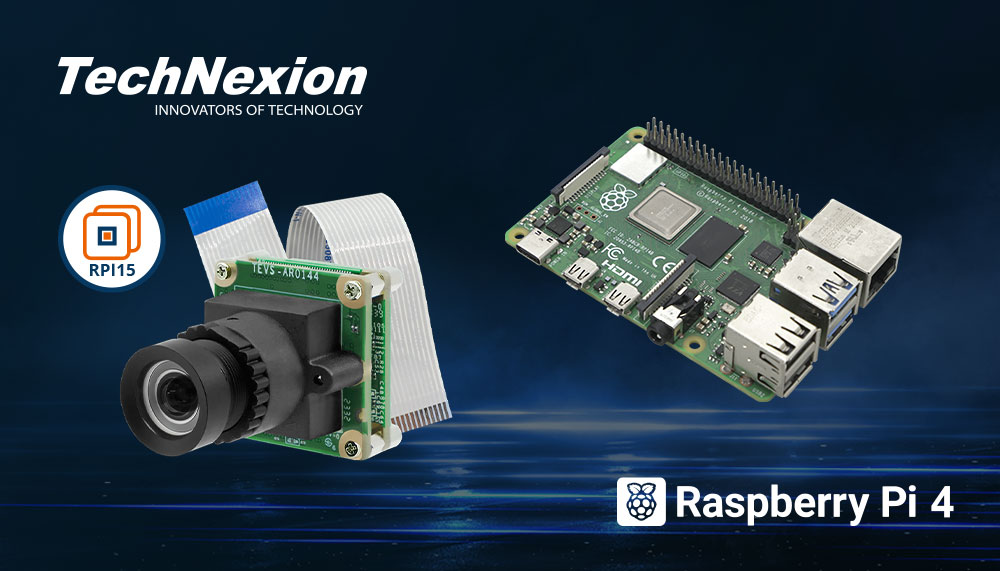
TechNexion TEVS Camera for Raspberry Pi 4
Introduction
TechNexion Embedded Vision Solutions provide embedded system developers access to high-performance, industrial-grade camera solutions to accelerate their time to market for embedded vision projects.
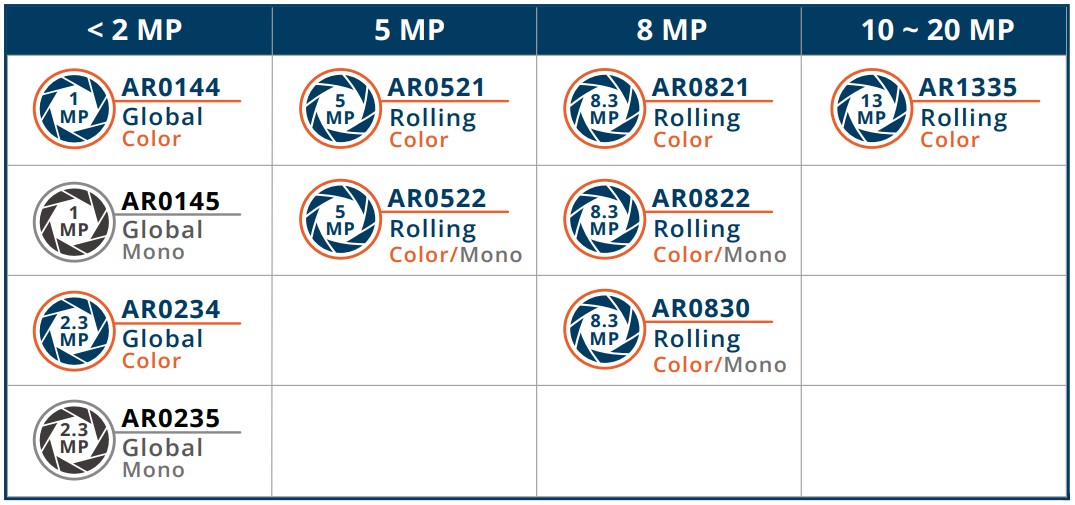
Support Camera Modules
- TEVS Series
- TEVM Series
| Camera Series | Products |
|---|---|
| TEVS | TEVS-AR0144 TEVS-AR0145 TEVS-AR0234 TEVS-AR0235 TEVS-AR0246 TEVS-AR0521 TEVS-AR0522 TEVS-AR0544 TEVS-AR0821 TEVS-AR0822 TEVS-AR0830 TEVS-AR1335 TEVS-AR2020 |
| Camera Series | Products |
|---|---|
| TEVM | TEVM-AR0144 TEVM-AR0145 TEVM-AR0234 TEVM-AR0235 TEVM-AR0246 TEVM-AR0521 TEVM-AR0522 TEVM-AR0544 TEVM-AR0821 TEVM-AR0822 TEVM-AR0830 TEVM-AR1335 TEVM-AR2020 |
Check here ! 🔗 TechNexion Embedded Vision Solutions
Find out the solution which can accelerate your time to market for embedded vision projects.
Supported Raspberry Pi
Support System Version
- Raspberry Pi OS (64-bit) 2023-12-06 [kernel 6.1.y]
- Raspberry Pi OS (64-bit) 2024-11-19 [kernel 6.6.y]
- Raspberry Pi OS (64-bit) 2026-04-21 [kernel 6.12.y]
- Raspberry Pi OS (64-bit) 2026-06-18 [kernel 6.18.y]
Install TN Camera on Raspberry Pi
Adaptor for Raspberry Pi Camera
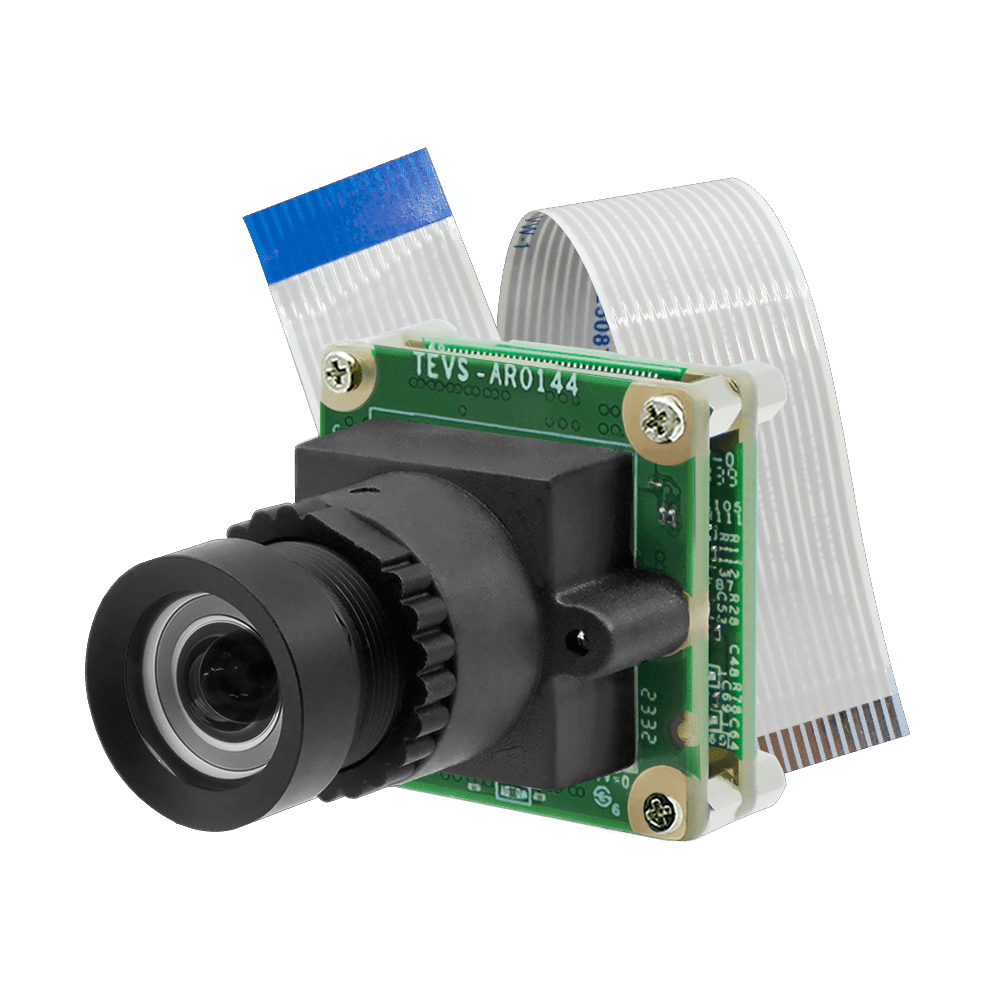
TEVS-RPI15 Adaptor for TEVS
Connect TEVS camera and TEVS-RPI15 adaptor to Raspberry Pi 4 Model B directly.
Method 1 - Using Technexion Pre-built modules
-
For kernel 6.1.y
The TechNexion pre-built modules is built for kernel version 6.1.63+rpt-rpi-2712. The latest version on RPI GitHub for kernel 6.1.y is kernel version 6.1.93. -
For kernel 6.6.y
The TechNexion pre-built modules is built for kernel version 6.6.51+rpt-rpi-2712. The latest version on RPI GitHub for kernel 6.6.y is kernel version 6.6.78. -
For kernel 6.12.y
The TechNexion pre-built modules is built for kernel version 6.12.75+rpt-rpi-2712. The latest version on RPI GitHub for kernel 6.12.y is kernel version 6.12.93. -
For kernel 6.18.y
The TechNexion pre-built modules is built for kernel version 6.18.34+rpt-rpi-2712. The latest version on RPI GitHub for kernel 6.18.y is kernel version 6.18.36.
They are incompatible. If you want to use the latest version of kernel, you must follow Method 2 to build the camera driver modules.
-
Use Raspberry Pi Imager to create an SD card containing the official image.
- For kernel 6.1.y - "Raspberry Pi OS (64-bit) 2023-12-06 [kernel 6.1.y]"
- For kernel 6.6.y - "Raspberry Pi OS (64-bit) 2024-11-19 [kernel 6.6.y]"
- For kernel 6.12.y - "Raspberry Pi OS (64-bit) 2026-04-21 [kernel 6.12.y]"
- For kernel 6.18.y - "Raspberry Pi OS (64-bit) 2026-06-18 [kernel 6.18.y]"
-
Boot RPI4 with SD card.
-
Download pre-built modules.
For Raspberry Pi OS (64-bit) 2023-12-06 [kernel 6.1.y]
$ wget https://download.technexion.com/demo_software/EVK/RPI/RPI4/pre-built-modules/latest/tn_camera_module_rpi4_6.1.y.tar.gzFor Raspberry Pi OS (64-bit) 2024-11-19 [kernel 6.6.y]
$ wget https://download.technexion.com/demo_software/EVK/RPI/RPI4/pre-built-modules/latest/tn_camera_module_rpi4_6.6.y.tar.gzFor Raspberry Pi OS (64-bit) 2026-04-21 [kernel 6.12.y]
$ wget https://download.technexion.com/demo_software/EVK/RPI/RPI4/pre-built-modules/latest/tn_camera_module_rpi4_6.12.y.tar.gzFor Raspberry Pi OS (64-bit) 2026-06-18 [kernel 6.18.y]
$ wget https://download.technexion.com/demo_software/EVK/RPI/RPI4/pre-built-modules/latest/tn_camera_module_rpi4_6.18.y.tar.gz -
Uncompress the modules.
For Raspberry Pi OS (64-bit) 2023-12-06 [kernel 6.1.y]
$ tar -xf tn_camera_module_rpi4_6.1.y.tar.gzFor Raspberry Pi OS (64-bit) 2024-11-19 [kernel 6.6.y]
$ tar -xf tn_camera_module_rpi4_6.6.y.tar.gzFor Raspberry Pi OS (64-bit) 2026-04-21 [kernel 6.12.y]
$ tar -xf tn_camera_module_rpi4_6.12.y.tar.gzFor Raspberry Pi OS (64-bit) 2026-06-18 [kernel 6.18.y]
$ tar -xf tn_camera_module_rpi4_6.18.y.tar.gz -
Run installation script.
For Raspberry Pi OS (64-bit) 2023-12-06 [kernel 6.1.y]
$ cd tn_camera_module_rpi4_6.1.y/
$ sh tn_install.sh
****** TechNexion Camera Driver Installation ******
This installation is easy to install TechnNexion Camera Drivers for Raspberry Pi 4.
Before start to install camera driver, You should BACKUP your image and config
to avoid any file you lost while installing process.
Do you want to continue?[Y/n]y
Continuing with the installation...
Install TN-CAM modules: tevs.ko.xz
Installed TN-CAM module file Done.
Install TN-CAM DTBO file: tevs-rpi15.dtbo
Installed TN-CAM DTBO file Done.
Add TN-CAM Configuration for modules: tevs-rpi15
Install TN-CAM service...
Launch TN-CAM Service...
Created symlink /etc/systemd/system/multi-user.target.wants/tn_cam.service → /etc/systemd/system/tn_cam.service.
Finish Camera Driver Installation. Return Code:[1]
You should Reboot Device to enable TEVS Cameras.
Do you want to reboot now?[Y/n]y
Rebooting....
For Raspberry Pi OS (64-bit) 2024-11-19 [kernel 6.6.y]
$ cd tn_camera_module_rpi4_6.6.y/
$ sh tn_install.sh
****** TechNexion Camera Driver Installation ******
This installation is easy to install TechnNexion Camera Drivers for Raspberry Pi 4.
Before start to install camera driver, You should BACKUP your image and config
to avoid any file you lost while installing process.
Do you want to continue?[Y/n]y
Continuing with the installation...
Install TN-CAM modules: tevs.ko.xz
Installed TN-CAM module file Done.
Install TN-CAM DTBO file: tevs-rpi15.dtbo
Installed TN-CAM DTBO file Done.
Install TN-CAM DTBO file: tevm-rpi15.dtbo
Installed TN-CAM DTBO file Done.
Add TN-CAM Configuration for modules: tevs-rpi15
Finish Camera Driver Installation. Return Code:[0]
You should Reboot Device to enable TEVS Cameras.
Do you want to reboot now?[Y/n]y
Rebooting....
For Raspberry Pi OS (64-bit) 2026-04-21 [kernel 6.12.y]
$ cd tn_camera_module_rpi4_6.12.y/
$ sh tn_install.sh
****** TechNexion Camera Driver Installation ******
This installation is easy to install TechnNexion Camera Drivers for Raspberry Pi 4.
Before start to install camera driver, You should BACKUP your image and config
to avoid any file you lost while installing process.
Do you want to continue?[Y/n]y
Continuing with the installation...
Install TN-CAM modules: tevs.ko.xz
Installed TN-CAM module file Done.
Install TN-CAM DTBO file: tevs-rpi15.dtbo
Installed TN-CAM DTBO file Done.
Install TN-CAM DTBO file: tevm-rpi15.dtbo
Installed TN-CAM DTBO file Done.
Add TN-CAM Configuration for modules: tevs-rpi15
Finish Camera Driver Installation. Return Code:[0]
You should Reboot Device to enable TEVS Cameras.
Do you want to reboot now?[Y/n]y
Rebooting....
For Raspberry Pi OS (64-bit) 2026-06-18 [kernel 6.18.y]
$ cd tn_camera_module_rpi4_6.18.y/
$ sh tn_install.sh
****** TechNexion Camera Driver Installation ******
This installation is easy to install TechnNexion Camera Drivers for Raspberry Pi 4.
Before start to install camera driver, You should BACKUP your image and config
to avoid any file you lost while installing process.
Do you want to continue?[Y/n]y
Continuing with the installation...
Install TN-CAM modules: tevs.ko.xz
Installed TN-CAM module file Done.
Install TN-CAM DTBO file: tevs-rpi15.dtbo
Installed TN-CAM DTBO file Done.
Install TN-CAM DTBO file: tevm-rpi15.dtbo
Installed TN-CAM DTBO file Done.
Add TN-CAM Configuration for modules: tevs-rpi15
Finish Camera Driver Installation. Return Code:[0]
You should Reboot Device to enable TEVS Cameras.
Do you want to reboot now?[Y/n]y
Rebooting....
Method 2 - Build drivers from source code (cross-compiling)
-
You can reference Raspberrypi Documentation - Building the kernel.
-
Make sure the dependencies
$ sudo apt install -y git bc bison flex libssl-dev make libc6-dev libncurses5-dev

# Install the 64-bit toolchain for a 64-bit kernel
$ sudo apt install -y crossbuild-essential-arm64 -
Get the kernel sources ("kernel version" is 6.1 or 6.6 or 6.12 or 6.18)
# raspberrypi linux kerbel
$ git clone --depth=1 -b rpi-<kernel version>.y https://github.com/raspberrypi/linux

# technexion rpi camera driver
$ git clone --depth=1 -b tn_rpi_kernel-<kernel version> https://github.com/TechNexion-Vision/tn-rpi-camera-driver.git -
Copy TN rpi camera driver to raspberrypi linux kernel
$ cp -rv tn-rpi-camera-driver/drivers/media/i2c/* linux/drivers/media/i2c/
$ cp -rv tn-rpi-camera-driver/arch/arm64/boot/dts/overlays/* linux/arch/arm64/boot/dts/overlays/ -
Build sources
Setup RPI4 default configuration.
$ cd linux
$ KERNEL=kernel8

# default configuration
$ make distclean
$ make ARCH=arm64 CROSS_COMPILE=aarch64-linux-gnu- bcm2711_defconfig
Configuring TechNexion TEVS camera.
# config camera
$ make ARCH=arm64 CROSS_COMPILE=aarch64-linux-gnu- menuconfig
# -> Device Drivers
#   -> Multimedia support
#     -> Media ancillary drivers
#       -> Camera sensor devices
#         -> TechNexion TEVS sensor support
#            Set "VIDEO_TEVS" to module,
#            Press "m", save to original name (.config) and exit
Building kernel image, modules and device tree.
# build kernel
$ mkdir -p modules
$ MODULE_PATH=./modules
$ make ARCH=arm64 CROSS_COMPILE=aarch64-linux-gnu- LOCALVERSION="-tn-raspi" -j$(nproc) Image modules dtbs
$ sudo make ARCH=arm64 CROSS_COMPILE=aarch64-linux-gnu- INSTALL_MOD_PATH=$MODULE_PATH modules_install -
Insert the SD card with the corresponding system pre-programmed into the PC.
- For kernel 6.1.y - "Raspberry Pi OS (64-bit) 2023-12-06 [kernel 6.1.y]"
- For kernel 6.6.y - "Raspberry Pi OS (64-bit) 2024-11-19 [kernel 6.6.y]"
- For kernel 6.12.y - "Raspberry Pi OS (64-bit) 2026-04-21 [kernel 6.12.y]"
- For kernel 6.18.y - "Raspberry Pi OS (64-bit) 2026-06-18 [kernel 6.18.y]"
-
Install onto the SD card
# check sd card block device (here we take "sdb" as an example)
$ lsblk
> sdb                         8:16   1  29.7G  0 disk
  ├─sdb1                      8:17   1   512M  0 part /media/$(whoami)/bootfs
  └─sdb2                      8:18   1  29.2G  0 part /media/$(whoami)/rootfs

$ sudo cp arch/arm64/boot/Image /media/$(whoami)/bootfs/$KERNEL.img
$ sudo cp arch/arm64/boot/dts/broadcom/*.dtb /media/$(whoami)/bootfs
$ sudo cp arch/arm64/boot/dts/overlays/*.dtb* /media/$(whoami)/bootfs/overlays/
$ sudo cp arch/arm64/boot/dts/overlays/README /media/$(whoami)/bootfs/overlays/

# you can use "make kernelversion" to check kernel version
$ sudo cp -ra modules/lib/modules/$(make kernelversion)-v8-tn-raspi/ /media/$(whoami)/rootfs/lib/modules/.
$ sync

# unmount SD card
$ umount /dev/sdb? -
Boot RPI4 with SD card.
-
Modify the config.txt file to add the camera configuraion.
$ sudo nano /boot/firmware/config.txt

# Automatically load overlays for detected cameras
> camera_auto_detect=0
> dtoverlay=tevs-rpi15,media-controller=0
Modify
camera_auto_detect=0and adddtoverlay=tevs-rpi15,media-controller=0after the line. ThenCtrl+sto save file andCtrl+xto exit. -
Restart system.
$ sudo reboot
Bring up Camera by GStreamer
If you succeed in initialing the camera, you can follow the steps to open the camera.
-
Check the media deivce.
infoThe /dev/media node number (for example /dev/media0) may not always be the same in your system, as they are not fixed allocations. We use “/dev/media0“ in our example below.
$ media-ctl -d /dev/media0 -p
Device topology
- entity 1: tevs 10-0048 (1 pad, 1 link)
            type V4L2 subdev subtype Sensor flags 0
            device node name /dev/v4l-subdev0
        pad0: Source
                [fmt:UYVY8_1X16/640x480@1/30 field:none colorspace:srgb xfer:srgb ycbcr:601 quantization:full-range
                  crop.bounds:(0,0)/640x480
                  crop:(0,0)/640x480]
                -> "unicam-image":0 [ENABLED,IMMUTABLE]

- entity 3: unicam-image (1 pad, 1 link)
            type Node subtype V4L flags 1
            device node name /dev/video0
        pad0: Sink
<- "tevs 10-0048":0 [ENABLED,IMMUTABLE] -
Install GStreamer. (only for the first time)
$ sudo apt-get install -y libgstreamer1.0-dev libgstreamer-plugins-base1.0-dev \
libgstreamer-plugins-bad1.0-dev gstreamer1.0-plugins-base gstreamer1.0-plugins-base-apps \
gstreamer1.0-plugins-good gstreamer1.0-plugins-bad gstreamer1.0-plugins-ugly \
gstreamer1.0-libav gstreamer1.0-tools gstreamer1.0-x gstreamer1.0-alsa \
gstreamer1.0-gl gstreamer1.0-gtk3 gstreamer1.0-pulseaudio -
Bring up the camera (/dev/video0) with 640x480 by Gstreamer pipeline.
$ DISPLAY=:0 gst-launch-1.0 v4l2src device=/dev/video0 ! \
"video/x-raw, format=(string)UYVY, width=(int)640, height=(int)480" ! \
fpsdisplaysink video-sink=glimagesink sync=false -
Change resolution with 1280x720 and bring up by Gstreamer pipeline directly.
$ DISPLAY=:0 gst-launch-1.0 v4l2src device=/dev/video0 ! \
"video/x-raw, format=(string)UYVY, width=(int)1280, height=(int)720" ! \
fpsdisplaysink video-sink=glimagesink sync=false
For kernel 6.12.y or later, you need to change camera resolution with
media-ctlcommand:$ media-ctl -d /dev/media0 -V \
"'tevs 10-0048':0 [fmt:UYVY8_1X16/1280x720 field:none colorspace:srgb xfer:srgb ycbcr:601]"
$ DISPLAY=:0 gst-launch-1.0 v4l2src device=/dev/video0 ! \
"video/x-raw, format=(string)UYVY, width=(int)1280, height=(int)720" ! \
fpsdisplaysink video-sink=xvimagesink sync=false