Jetson Orin Nano Developer Kit with JetPack 6.x
Instruction
TechNexion Embedded Vision Solutions provide embedded system developers access to high-performance, industrial-grade camera solutions to accelerate their time to market for embedded vision projects.
Supported Platforms
| Platform | Supported JetPack | Installer Selection |
|---|---|---|
| Jetson Orin Nano Developer Kit | JetPack 6.1, 6.2, 6.2.1, 6.2.2 | Not required for JetPack 6.1; Jetson Orin Nano for JetPack 6.2 / 6.2.1 / 6.2.2 |
Supported Camera Modules
| Camera Series | Products |
|---|---|
| TEVS | TEVS-AR0144 TEVS-AR0145 TEVS-AR0234 TEVS-AR0235 TEVS-AR0246 TEVS-AR0521 TEVS-AR0522 TEVS-AR0544 TEVS-AR0821 TEVS-AR0822 TEVS-AR0830 TEVS-AR1335 TEVS-AR2020 |
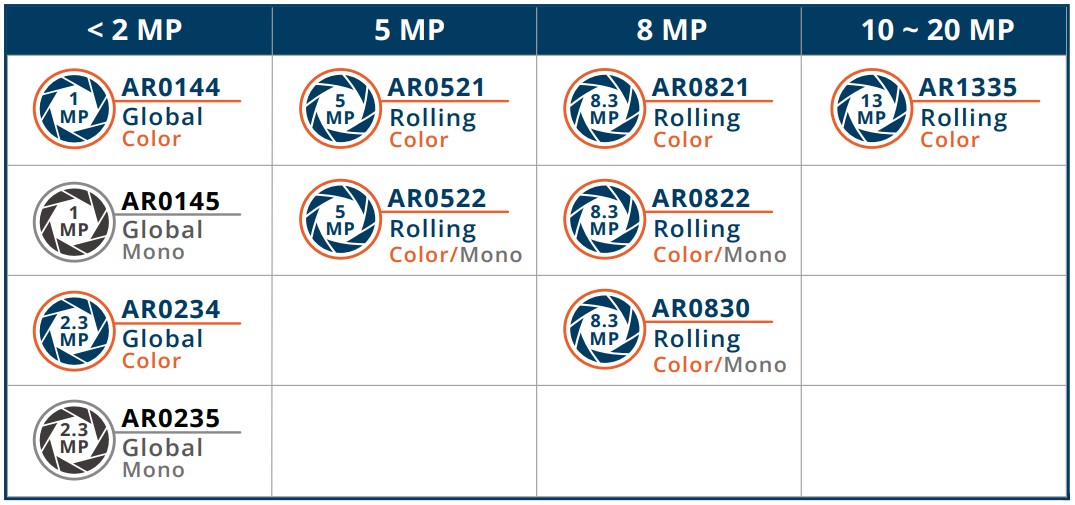
More Camera Products Details...
If you want to use VLS-GM2 GMSL2 cameras, please refer to the GMSL2 Jetson Orin Nano JetPack 6.x guide.
Install TN Camera on Jetson Orin Nano Developer Kit
Adaptor for NVIDIA Jetson Orin Nano Developer Kit
TEV-RPI22 Adaptor
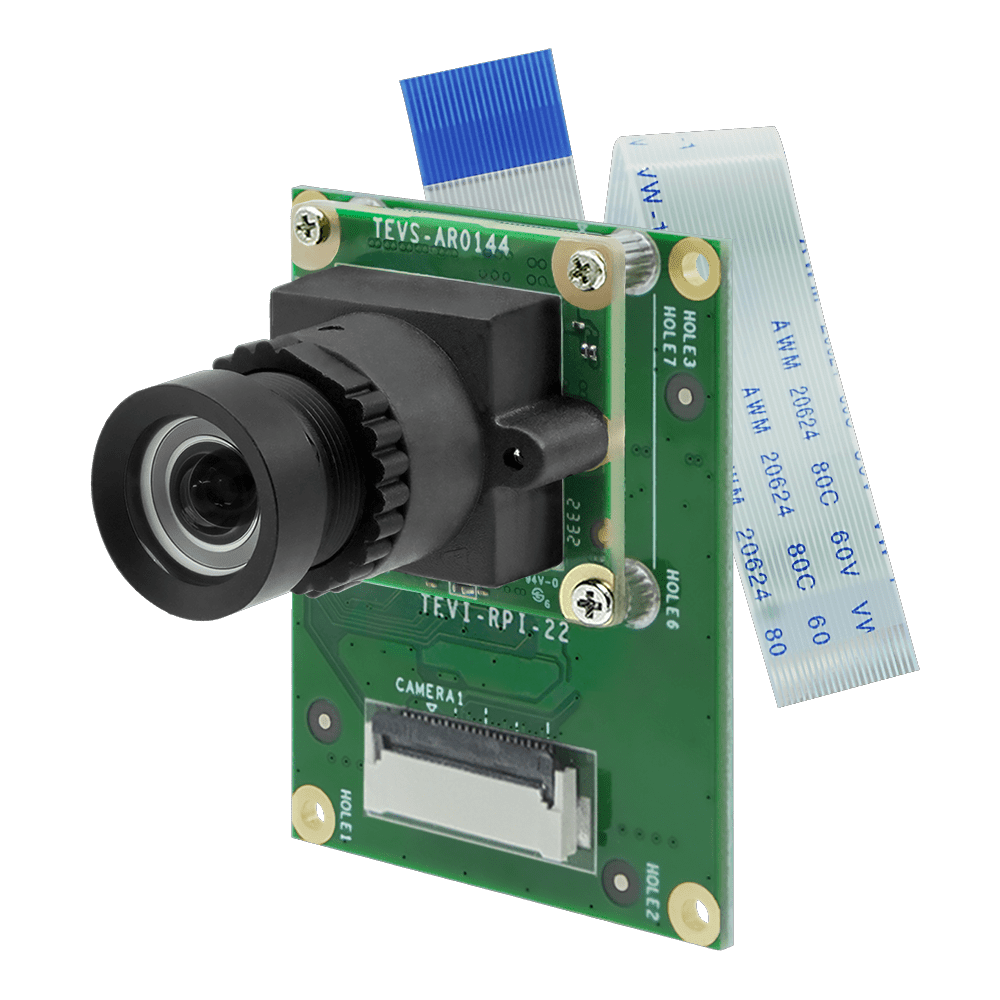
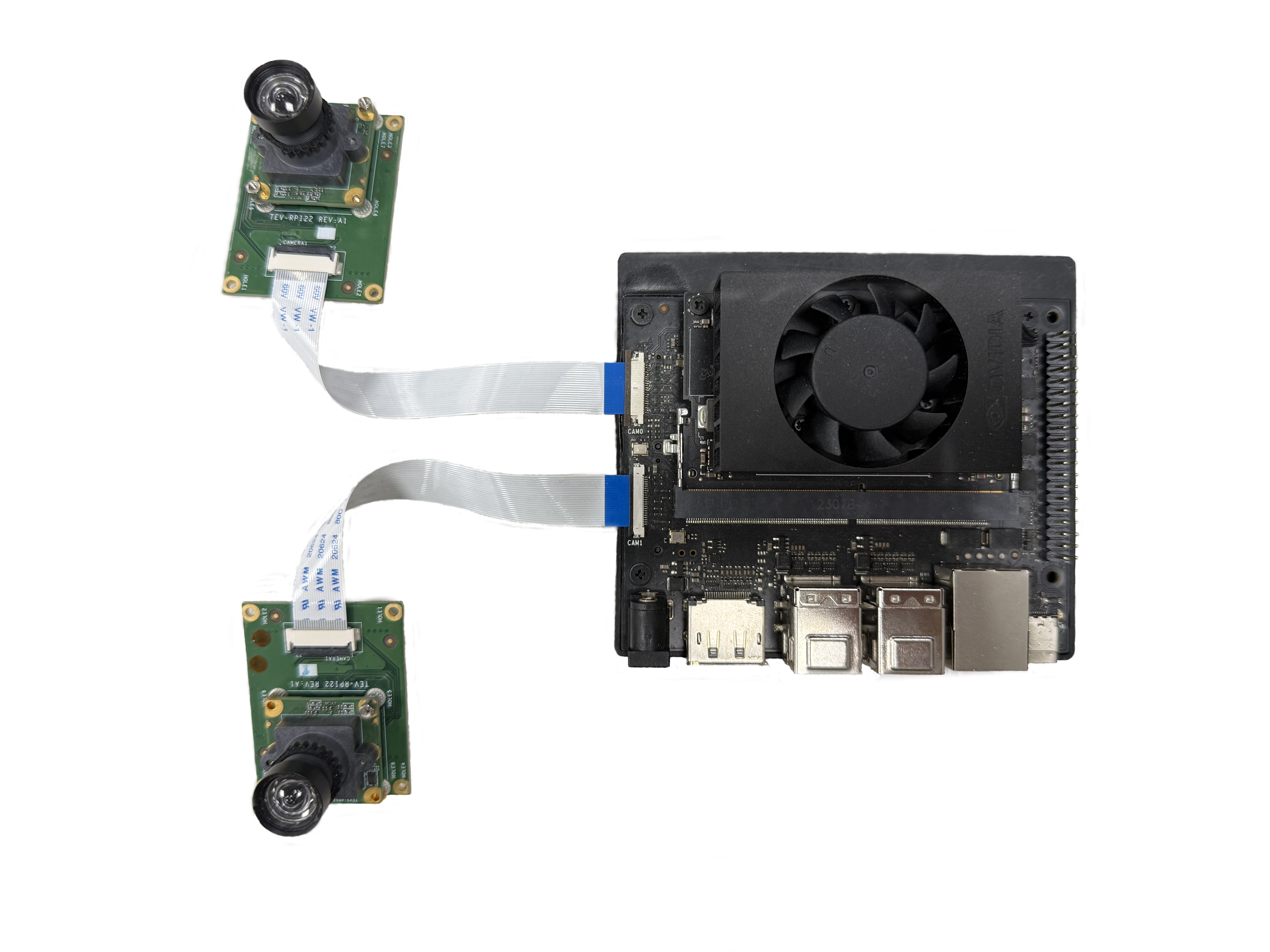
Connect TEVS camera and TEV-RPI22 adaptor to the Jetson Orin Nano Developer Kit directly.
Method 1 - Using TechNexion pre-built modules
Set up the Jetson Orin Nano Developer Kit with the matching NVIDIA JetPack image first, then install the TechNexion camera driver package for that JetPack release.
- Download pre-built modules.
- JetPack 6.1
- JetPack 6.2
- JetPack 6.2.1
- JetPack 6.2.2
wget https://download.technexion.com/demo_software/EVK/NVIDIA/OrinNano/pre-built-modules/latest/JP61/tn_camera_modules_jp61.tar.gz
wget https://download.technexion.com/demo_software/EVK/NVIDIA/OrinNano/pre-built-modules/latest/JP62/tn_camera_modules_jp62.tar.gz
wget https://download.technexion.com/demo_software/EVK/NVIDIA/OrinNano/pre-built-modules/latest/JP621/tn_camera_modules_jp621.tar.gz
wget https://download.technexion.com/demo_software/EVK/NVIDIA/OrinNano/pre-built-modules/latest/JP622/tn_camera_modules_jp622.tar.gz
-
Uncompress the modules.
tar -xf tn_camera_modules_<jp_ver>.tar.gz -
Run installation script.
cd tn_camera_modules_<l4t_ver>_<release_time>/
sudo ./tn_install.sh -
Select the TEVS camera module.
- JetPack 6.1
- JetPack 6.2
- JetPack 6.2.1
- JetPack 6.2.2
$ sudo ./tn_install.sh
****** TechNexion Camera Driver Installation ******
This installer updates TechNexion camera drivers, camera DTBOs,
and boot entries for NVIDIA Jetson Development Kits.
Back up your image before continuing.
Continue? [Y/n] Y
Camera module:
  [1] TEVS - TEVS Series MIPI Cameras with TEV-RPI22 Adaptor
  [2] VLS-FPD3 - VLS-FPD3 Series Cameras with VL-FPD3-8CAM-RPI22 Adaptor
  [3] VLS-GM2 - VLS-GM2 Series Cameras with VL-GM2-8CAM-RPI22 Adaptor
Select camera module [1-3] (default: 1): 1
Reboot after installation? [y/N] n
Installing OrinNano JP61
Selected platform: Jetson Orin Nano
Selected module: TEVS
Installation summary:
  Kernel: 5.15.148-tegra
  Modules installed: 5
  Boot files installed: 7
  Default boot entry: tevs
  Camera overlay: /boot/tegra234-p3767-camera-p3768-tevs-dual.dtbo
  Camera boot entries: 1
Finish Camera Driver Installation.
Reboot the device when the user is ready.
$ sudo ./tn_install.sh
****** TechNexion Camera Driver Installation ******
This installer updates TechNexion camera drivers, camera DTBOs,
and boot entries for NVIDIA Jetson Development Kits.
Back up your image before continuing.
Continue? [Y/n] Y
Target platform:
  [1] Jetson Orin Nano
  [2] Jetson AGX Orin
Select platform [1-2] (default: 1): 1
Camera module:
  [1] TEVS - TEVS Series MIPI Cameras with TEV-RPI22 Adaptor
  [2] VLS-FPD3 - VLS-FPD3 Series Cameras with VL-FPD3-8CAM-RPI22 Adaptor
  [3] VLS-GM2 - VLS-GM2 Series Cameras with VL-GM2-8CAM-RPI22 Adaptor
Select camera module [1-3] (default: 1): 1
Reboot after installation? [y/N] n
Installing OrinNano JP62
Selected platform: Jetson Orin Nano
Selected module: TEVS
Installation summary:
  Kernel: 5.15.148-tegra
  Modules installed: 5
  Boot files installed: 12
  Default boot entry: tevs
  Camera overlay: /boot/tegra234-p3767-camera-p3768-tevs-dual.dtbo
  Camera boot entries: 1
Finish Camera Driver Installation.
Reboot the device when the user is ready.
$ sudo ./tn_install.sh
****** TechNexion Camera Driver Installation ******
This installer updates TechNexion camera drivers, camera DTBOs,
and boot entries for NVIDIA Jetson Development Kits.
Back up your image before continuing.
Continue? [Y/n] Y
Target platform:
  [1] Jetson Orin Nano
  [2] Jetson AGX Orin
Select platform [1-2] (default: 1): 1
Camera module:
  [1] TEVS - TEVS Series MIPI Cameras with TEV-RPI22 Adaptor
  [2] VLS-FPD3 - VLS-FPD3 Series Cameras with VL-FPD3-8CAM-RPI22 Adaptor
  [3] VLS-GM2 - VLS-GM2 Series Cameras with VL-GM2-8CAM-RPI22 Adaptor
Select camera module [1-3] (default: 1): 1
Reboot after installation? [y/N] n
Installing OrinNano JP621
Selected platform: Jetson Orin Nano
Selected module: TEVS
Installation summary:
  Kernel: 5.15.148-tegra
  Modules installed: 5
  Boot files installed: 12
  Default boot entry: tevs
  Camera overlay: /boot/tegra234-p3767-camera-p3768-tevs-dual.dtbo
  Camera boot entries: 1
Finish Camera Driver Installation.
Reboot the device when the user is ready.
$ sudo ./tn_install.sh
****** TechNexion Camera Driver Installation ******
This installer updates TechNexion camera drivers, camera DTBOs,
and boot entries for NVIDIA Jetson Development Kits.
Back up your image before continuing.
Continue? [Y/n] Y
Target platform:
  [1] Jetson Orin Nano
  [2] Jetson AGX Orin
Select platform [1-2] (default: 1): 1
Camera module:
  [1] TEVS - TEVS Series MIPI Cameras with TEV-RPI22 Adaptor
  [2] VLS-FPD3 - VLS-FPD3 Series Cameras with VL-FPD3-8CAM-RPI22 Adaptor
  [3] VLS-GM2 - VLS-GM2 Series Cameras with VL-GM2-8CAM-RPI22 Adaptor
Select camera module [1-3] (default: 1): 1
Reboot after installation? [y/N] n
Installing OrinNano JP622
Selected platform: Jetson Orin Nano
Selected module: TEVS
Installation summary:
  Kernel: 5.15.148-tegra
  Modules installed: 5
  Boot files installed: 12
  Default boot entry: tevs
  Camera overlay: /boot/tegra234-p3767-camera-p3768-tevs-dual.dtbo
  Camera boot entries: 1
Finish Camera Driver Installation.
Reboot the device when the user is ready.
Reboot the device after installation.
Method 2 - Using TechNexion disk image
The pre-built disk image below is provided for JetPack 6.2.
wget https://download.technexion.com/demo_software/EVK/NVIDIA/OrinNano/TEV-RPI22_Camera_Series/DiskImage/tn-jp62-orin-nano-tevs-sd-card-image.zip
unzip tn-jp62-orin-nano-tevs-sd-card-image.zip -d ./
sudo dd if=tn_jp62_tevs-dual_sd_disk.img of=${device} bs=1M status=progress oflag=direct
Method 3 - Build drivers from source code
Please follow the guide to build camera driver modules.
Bring up Camera
TechNexion VizionViewer
Gstreamer
If you succeed in initialing the camera, you can follow the steps to open the camera.
-
Check the supported resolutions:
$ gst-device-monitor-1.0 Video/Source
Device found:

        name  : vi-output, tevs 10-0048
        class : Video/Source
        caps  : video/x-raw, format=UYVY, width=640, height=480, framerate=120/1
                video/x-raw, format=UYVY, width=1280, height=720, framerate=120/1
                video/x-raw, format=UYVY, width=1920, height=1080, framerate=60/1
                video/x-raw, format=UYVY, width=1920, height=1200, framerate=60/1
                video/x-raw, format=NV16, width=640, height=480, framerate=120/1
                video/x-raw, format=NV16, width=1280, height=720, framerate=120/1
                video/x-raw, format=NV16, width=1920, height=1080, framerate=60/1
                video/x-raw, format=NV16, width=1920, height=1200, framerate=60/1
                video/x-raw, format=UYVY, width=640, height=480, framerate=120/1
                video/x-raw, format=UYVY, width=1280, height=720, framerate=120/1
                video/x-raw, format=UYVY, width=1920, height=1080, framerate=60/1
                video/x-raw, format=UYVY, width=1920, height=1200, framerate=60/1
        properties:
                object.path = v4l2:/dev/video0
                device.api = v4l2
                media.class = Video/Source
                api.v4l2.path = /dev/video0
                api.v4l2.cap.driver = tegra-video
                api.v4l2.cap.card = "vi-output\,\ tevs\ 10-0048"
                api.v4l2.cap.bus_info = platform:tegra-capture-vi:1
                api.v4l2.cap.version = 5.15.148
                api.v4l2.cap.capabilities = 84200001
                api.v4l2.cap.device-caps = 04200001
                device.id = 33
                node.name = v4l2_input.platform-tegra-capture-vi
                node.description = "vi-output\,\ tevs\ 10-0048"
                factory.name = api.v4l2.source
                node.pause-on-idle = false
                factory.id = 10
                client.id = 32
                clock.quantum-limit = 8192
                media.role = Camera
                node.driver = true
                object.id = 34
                object.serial = 34
        gst-launch-1.0 pipewiresrc path=34 ! ...

... -
Use the Gstreamer pipeline to launch a 1280x720 resolution camera (/dev/video0) via the CPU:
$ DISPLAY=:0 gst-launch-1.0 v4l2src device=/dev/video0 ! \
"video/x-raw, format=UYVY, width=1280, height=720" ! xvimagesink sync=false -
Use the Gstreamer pipeline to launch a 1280x720 resolution camera (/dev/video0) via the GPU:
$ DISPLAY=:0 gst-launch-1.0 nvv4l2camerasrc device=/dev/video0 ! \
"video/x-raw(memory:NVMM), format=UYVY, width=1280, height=720" ! \
nvvidconv ! nv3dsink sync=false
Troubleshooting
Cannot Find Cameras
If you cannot bring up the cameras, you can check if the video device does exist.
$ ls /dev/video*  # List all video devices
/dev/video0  /dev/video1
If you cannot see the devices, you should check if the drivers have been probed.
Occur Error: Could not get EGL display connection
If you occurred the errors nvbufsurftransform: Could not get EGL display connection by rununing the Gstreamer command, you can modify the parameter 'DISPLAY' by the command:
# Check and Set environment parameter for 'DISPLAY'
$ export DISPLAY=$(w| tr -s ' '| cut -d ' ' -f 3 | grep :)
# Run Gstreamer pipeline
$ gst-launch-1.0 v4l2src device=/dev/video0 ! \
"video/x-raw, format=UYVY, width=1280, height=720" ! xvimagesink sync=false