Seeed Jetson AGX Orin 32GB H01 Kit with JetPack 6.2
Instruction
TechNexion Embedded Vision Solutions provide embedded system developers access to high-performance, industrial-grade camera solutions to accelerate their time to market for embedded vision projects.
Supported Camera Modules
| Camera Series | Products |
|---|---|
| VLS-GM2 | VLS-GM2-AR0144 VLS-GM2-AR0145 VLS-GM2-AR0234 VLS-GM2-AR0235 VLS-GM2-AR0246 VLS-GM2-AR0521 VLS-GM2-AR0522 VLS-GM2-AR0544 VLS-GM2-AR0821 VLS-GM2-AR0822 VLS-GM2-AR0830 VLS-GM2-AR1335 VLS-GM2-AR2020 |
More Camera Products Details...
Supported NVIDIA Jetson Partner Platforms
Install TN Camera on NVIDIA Jetson Partner Platforms
Adaptor for NVIDIA Jetson Partner AGX Orin Platforms
VL-GM2-AGX-8CAM Adaptor for VLS-GM2 Cameras
Connect VL-GM2-AGX-8CAM adaptor to Seeed AGX Orin 32GB H01 Kit directly.
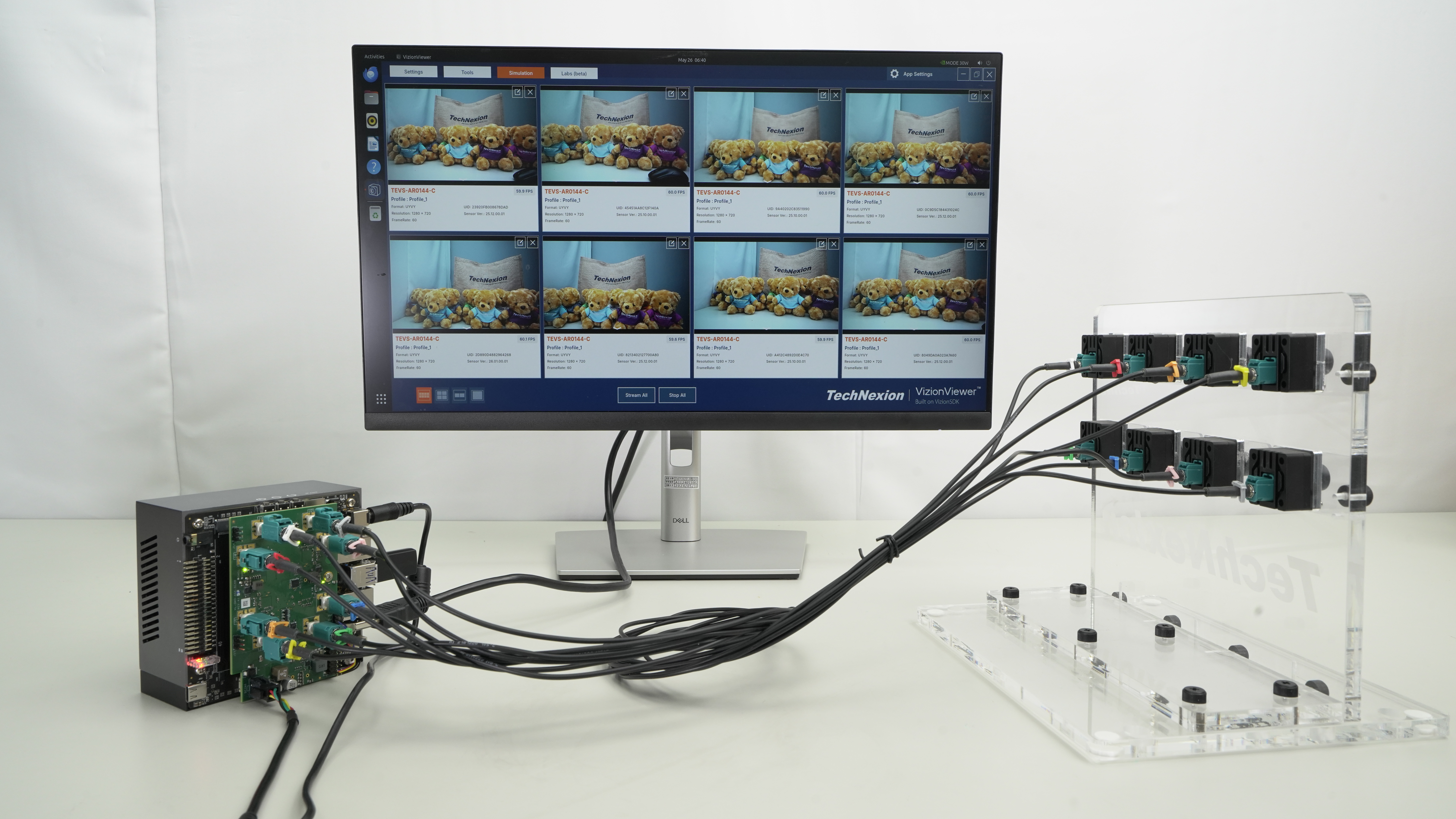
Follow the video tutorial below to learn how to connect VL-GM2-AGX-8CAM adaptor and VLS-GM2 cameras to AGX Orin H01 Kit.
Method 1 - Using TechNexion Pre-built modules
We recommend following the user manual from platform vendors to setup system JetPack 6.2. After that, you can follow the below method to install TechNexion Cameras Driver.
-
Download pre-built modules.
$ wget https://download.technexion.com/demo_software/EVK/NVIDIA/OrinNano/pre-built-modules/latest/JP62/tn_camera_modules_jp62.tar.gz -
Uncompress the modules.
$ tar -xf tn_camera_modules_jp62.tar.gz -
Run installation script.
$ cd tn_camera_modules_r36.4.3_<built_time>/
$ ./tn_install.sh -
After you agree to continue the installation, the module will be installed to the system.
$ ./tn_install.sh
****** TechNexion Camera Driver Installation ******
This installation is easy to install TechnNexion Camera Drivers for Nvidia
Jetson Development Kits. Before start to install camera driver,
You should BACKUP your image to avoid any file you lost while installing process.
Do you want to continue?[Y/n]y
Continuing with the installation...
File  does not exist in /boot/dtb/
Setting REF_DTB_FILE to existing file: kernel_tegra234-p3737-0000+p3701-0005-nv.dtb
Install TN-CAM modules: max96724.ko
Install TN-CAM modules: max96716a.ko
Install TN-CAM modules: max96717.ko
Install TN-CAM modules: vls3.ko
Install TN-CAM modules: tevs.ko
Select platform:
        [1]: Jetson Orin Nano
        [2]: Jetson AGX Orin (only support JP6.2.x)
Which platform do you select?[default:1]2
Install TN-CAM DTBO file: tegra234-p3737-camera-vls-gm2-overlay.dtbo
Installed TN-CAM DTB file Done.
Install TN-CAM DTBO file: tegra234-p3737-camera-vls-gm2-fsync-overlay.dtbo
Installed TN-CAM DTB file Done.
Install TN-CAM DTBO file: tegra234-p3737-camera-vls-gm2-tunnel-overlay.dtbo
Installed TN-CAM DTB file Done.
Install TN-CAM DTBO file: tegra234-p3737-camera-vls-gm2-tunnel-fsync-overlay.dtbo
Installed TN-CAM DTB file Done.
Install TN-CAM DTBO file: tegra234-p3737-camera-vls-gm2-fsync-external-overlay.dtbo
Installed TN-CAM DTB file Done.
Installing module: vls-gm2
Add TN-CAM Configuration for modules: vls-gm2
Installing module: vls-gm2-fsync
Add TN-CAM Configuration for modules: vls-gm2-fsync
Installing module: vls-gm2-tunnel
Add TN-CAM Configuration for modules: vls-gm2-tunnel
Installing module: vls-gm2-tunnel-fsync
Add TN-CAM Configuration for modules: vls-gm2-tunnel-fsync
Installing module: vls-gm2-fsync-external
Add TN-CAM Configuration for modules: vls-gm2-fsync-external
Set Default Configuration for modules: vls-gm2
Install TN-CAM service...
Launch TN-CAM Service...
Finish Camera Driver Installation. Return Code:[0]
You should Reboot Device to enable vls-gm2 Cameras.
Do you want to reboot now?[Y/n]Y
Rebooting....
You should reboot the device after installation.
Method 2 - Using TechNexion disk image
This disk image file is for VLS-GM2 with Seeed AGX Orin 32GB H01 Kit with JetPack 6.2 version.
-
Download disk image.
$ wget https://download.technexion.com/demo_software/EVK/NVIDIA/H01-KIT/DiskImage/latest/mfi_jetson-agx-orin-32gb-h01-kit-gmsl-tn-jp6.2.tar.gz -
Extract the image files.
$ sudo tar -xf mfi_jetson-agx-orin-32gb-h01-kit-gmsl-tn-jp6.2.tar.gzYou will see a folder "mfi_jetson-agx-orin-devkit" in your current location.
-
The platform enters forced recovery mode and connects to the PC via USB.
-
Write the image files to the platform eMMC.
$ cd mfi_jetson-agx-orin-devkit
$ sudo ./tools/kernel_flash/l4t_initrd_flash.sh --flash-only --massflash 1 --network usb0 --showlogs
Bring up Camera
TechNexion VizionViewer
Gstreamer
If you succeed in initialing the camera, you can follow the steps to open the camera.
-
Check the supported resolutions:
$ gst-device-monitor-1.0 Video/Source
Probing devices...

Device found:

        name  : vi-output, tevs 9-0049
        class : Video/Source
        caps  : video/x-raw, format=UYVY, width=640, height=480, framerate=60/1
                video/x-raw, format=UYVY, width=1280, height=720, framerate=60/1
                video/x-raw, format=UYVY, width=1280, height=800, framerate=60/1
                video/x-raw, format=UYVY, width=640, height=480, framerate=60/1
                video/x-raw, format=UYVY, width=1280, height=720, framerate=60/1
                video/x-raw, format=UYVY, width=1280, height=800, framerate=60/1
        properties:
                object.path = v4l2:/dev/video0
                device.api = v4l2
                media.class = Video/Source
                api.v4l2.path = /dev/video0
                api.v4l2.cap.driver = tegra-video
                api.v4l2.cap.card = "vi-output\,\ tevs\ 2-0049"
                api.v4l2.cap.bus_info = platform:tegra-capture-vi:2
                api.v4l2.cap.version = 5.15.148
                api.v4l2.cap.capabilities = 84a00001
                api.v4l2.cap.device-caps = 04200001
                device.id = 33
                node.name = v4l2_input.platform-tegra-capture-vi
                node.description = "vi-output\,\ tevs\ 2-0049"
                factory.name = api.v4l2.source
                node.pause-on-idle = false
                factory.id = 10
                client.id = 32
                clock.quantum-limit = 8192
                media.role = Camera
                node.driver = true
                object.id = 34
                object.serial = 34
        gst-launch-1.0 pipewiresrc path=34 ! ...

... -
Bring up the camera (/dev/video0) with 1280x720 by Gstreamer pipeline:
$ DISPLAY=:0 gst-launch-1.0 v4l2src device=/dev/video0 ! \
"video/x-raw, format=UYVY, width=1280, height=720" ! xvimagesink sync=false
Troubleshooting
-
Cannot find cameras
If you cannot bring up the cameras, you can check if the video device does exist.
$ ls /dev/video*  # List all video devices
/dev/video0  /dev/video1
If you cannot see the devices, you should check if the drivers have been probed.
-
Occur Error: Could not get EGL display connection
If you occurred the errors nvbufsurftransform: Could not get EGL display connection by rununing the Gstreamer command, you can modify the parameter
DISPLAYby the command:# Check and Set environment parameter for 'DISPLAY'
$ export DISPLAY=$(w| tr -s ' '| cut -d ' ' -f 3 | grep :)
# Run Gstreamer pipeline
$ gst-launch-1.0 v4l2src device=/dev/video0 ! \
"video/x-raw, format=UYVY, width=1280, height=720" ! xvimagesink sync=false