GMSL Link Margin Testing
Overview
GMSL Link Margin Testing validates the link margin, which is the difference between signal strength and receiver sensitivity. TechNexion VLS-GM2 cameras utilize the GMSL2 interface to transmit video data to the deserializer.
We provide a fast and convenient way to perform validation using Docker containers. This approach ensures host stability while simplifying updates and maintenance.
System Requirements
- Platform: NVIDIA Jetson Orin Nano Development Kit
- JetPack: 6.2.1 (L4T r36.4.4)
- Software: Docker Engine
Users must first install the driver. Refer to the VLS-GM2 installation guide: Jetson Orin Nano Developer Kit with JetPack 6.x
Usage Steps
1. Pull the Image
sudo docker pull technexion/gmsl-linkmargin-tool:nv_jetson_36.4
2. Run the Container
sudo docker run -d \
  --name gmsl-webui \
  --restart unless-stopped \
  --privileged \
  -p 8000:8000 \
  -e PYTHONUNBUFFERED=1 \
  technexion/gmsl-linkmargin-tool:nv_jetson_36.4
3. Access the Web UI
After startup, open your browser and navigate to:
http://<jetson-ip>:8000
Query Jetson IP:
hostname -I | awk '{print $1}'
4. Configure and Run the Test
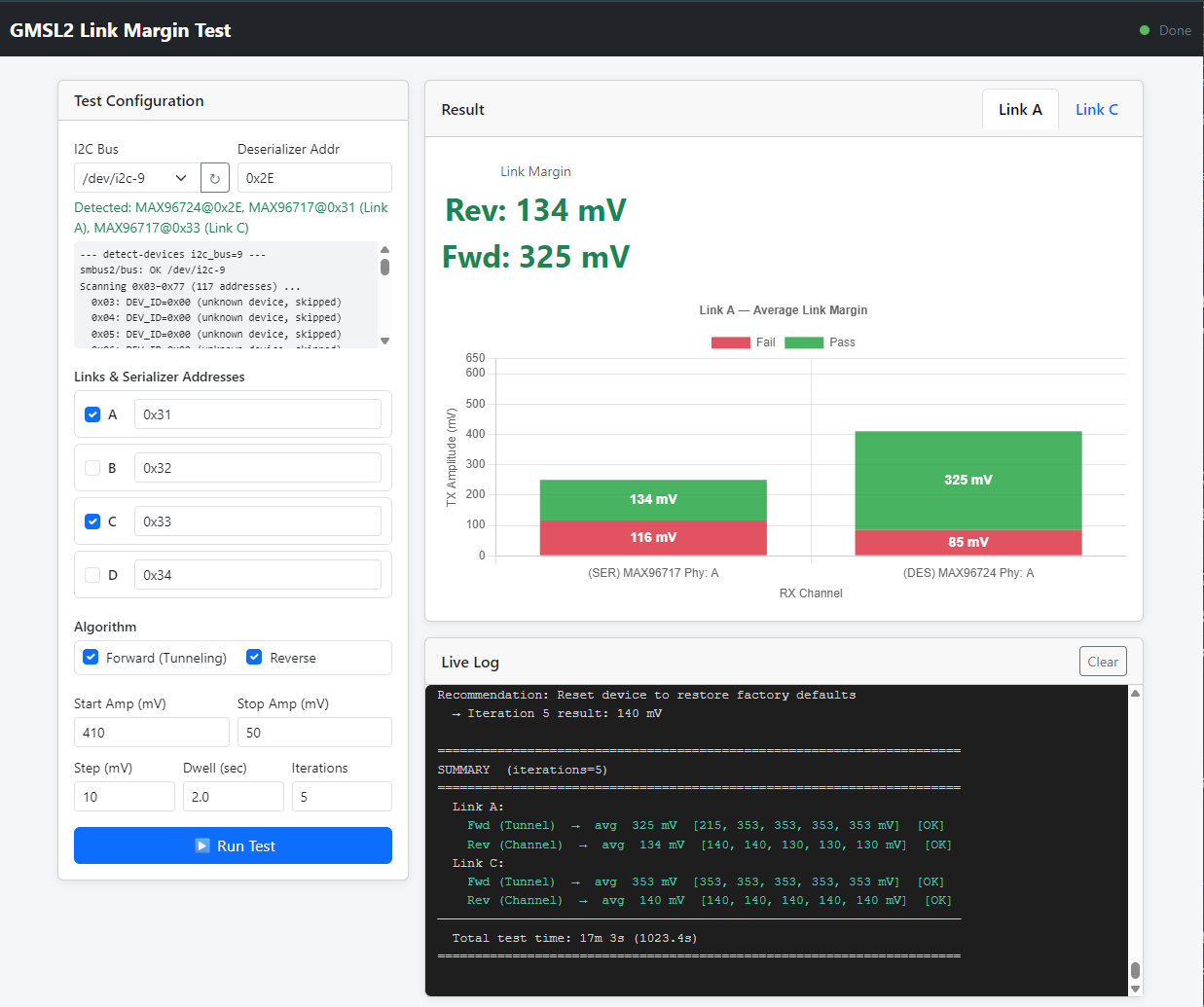
- Select I2C Bus: Choose the I2C bus you want to test.
- Select Link: Choose the link you want to test, it will auto-detect the link when the i2c bus is selected.
- Select Algorithm: Select the appropriate algorithm, default is Both Algorithms.
- Click Start: The tool will automatically start the link margin test.
Test Result Sample
5. Stop the Container
sudo docker stop gmsl-webui
6. Remove the Container (Optional)
sudo docker rm gmsl-webui
I2C Bus Check
Before selecting the I2C Bus in the Web UI after startup, you can first check the available buses on the Jetson:
i2cdetect -l
Common GMSL2 connected buses (varies by board):
| Bus | Controller |
|---|---|
| i2c-9 | i2c-2-mux (chan_id 0) |
| i2c-10 | i2c-2-mux (chan_id 1) |
Then check if the devices exist, for example:
$ sudo i2cdetect -r -y <bus_number>
The actual address of SerDes devices are depended on the device tree. You can check the device tree to find the actual address.
Troubleshooting
| Issue | Solution |
|---|---|
| Web UI fails to open | Ensure container is running: sudo docker ps |
| GMSL device undetected | Verify I2C Bus selection; check Web UI detection log after switching Bus |
| Container fails to start | Check container logs: sudo docker logs gmsl-webui |
| I2C permission error | Make sure the --privileged parameter was included when starting |
| iptables error causing startup failure | See explanation below |
Startup Failure due to Missing iptables Module
Error Message:
docker: Error response from daemon: failed to set up container networking: failed to
create endpoint gmsl-webui on network bridge: Unable to enable DIRECT ACCESS
FILTERING - DROP rule: (iptables failed: iptables --wait -t raw -A PREROUTING -d
172.17.0.2 ! -i docker0 -j DROP: iptables v1.8.7 (legacy): can't initialize iptables
table `raw`: Table does not exist (do you need to insmod?)
Perhaps iptables or your kernel needs to be upgraded.
(exit status 3))
Cause: Custom kernels (such as RT kernels or minimal kernels) might not load the iptables raw table module, leading to Docker bridge networking failing to create packet filtering rules.
Solution: Use --net=host to Bypass iptables
--net=host allows the container to directly share the host's networking interfaces, bypassing the need for iptables/NAT, and directly binding port 8000 on the host:
sudo docker run -d \
  --name gmsl-webui \
  --restart unless-stopped \
  --privileged \
  --net=host \
  -e PYTHONUNBUFFERED=1 \
  technexion/gmsl-linkmargin-tool:nv_jetson_36.4
Note: When using
--net=host, port mapping-p 8000:8000is not needed as it is invalid in the host networking mode.
After starting, access directly via the Jetson IP with port 8000:
http://<jetson-ip>:8000